Organise Your Thoughts with Smart Notes
Never lose a thought again. This guide walks you through FlowBeam's note-taking system — from quick capture to organised categories, pinned priorities, and powerful search. Learn how to build a knowledge base that grows alongside your focus sessions.
Open Your Notes
Your notes live in the Notes page, accessible from the "Plan & Organize" menu. The overview shows your stats at a glance — active notes, pinned items, notes created today, and any overdue items. Tabs let you filter between active, pinned, completed, and archived notes instantly.
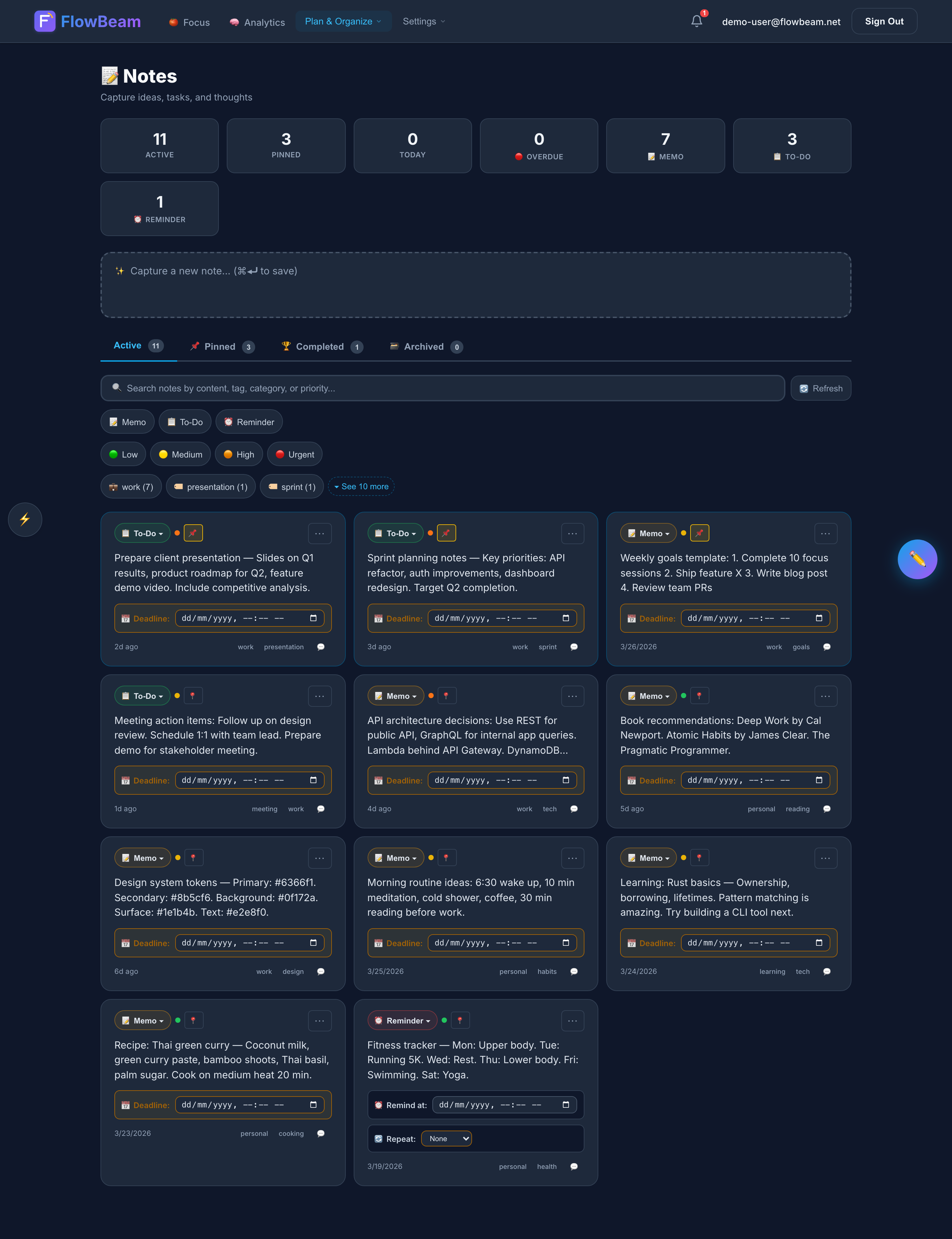
Your Notes dashboard — everything at a glance
Quick access. Use the "Plan & Organize" dropdown in the top navigation to jump to Notes from anywhere in the app.
Create a Note in Seconds
The inline note input sits right at the top of the page — no modals, no extra clicks. Type your thought, optionally set a category, tags, priority, and deadline, then hit Save. The note appears instantly in your grid below.
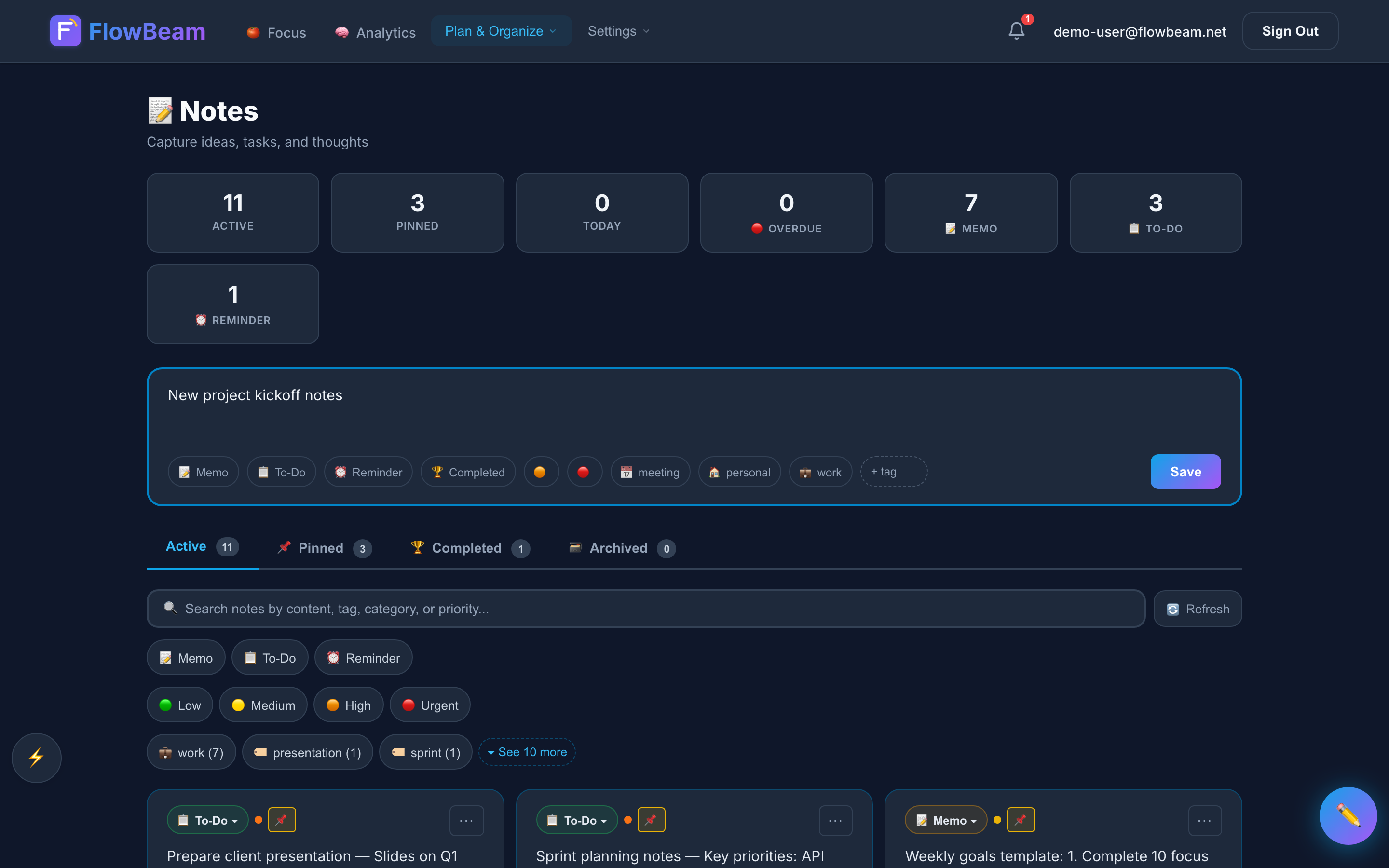
Capture ideas instantly with the inline note input
Organise with Categories & Tags
As your notes grow, organisation becomes essential. Use categories (Work, Personal, Ideas, Learning) to group notes by domain, and tags for cross-cutting topics. The filter tabs at the top let you slice your collection by status — active, pinned, completed, or archived — so you always find what you need.
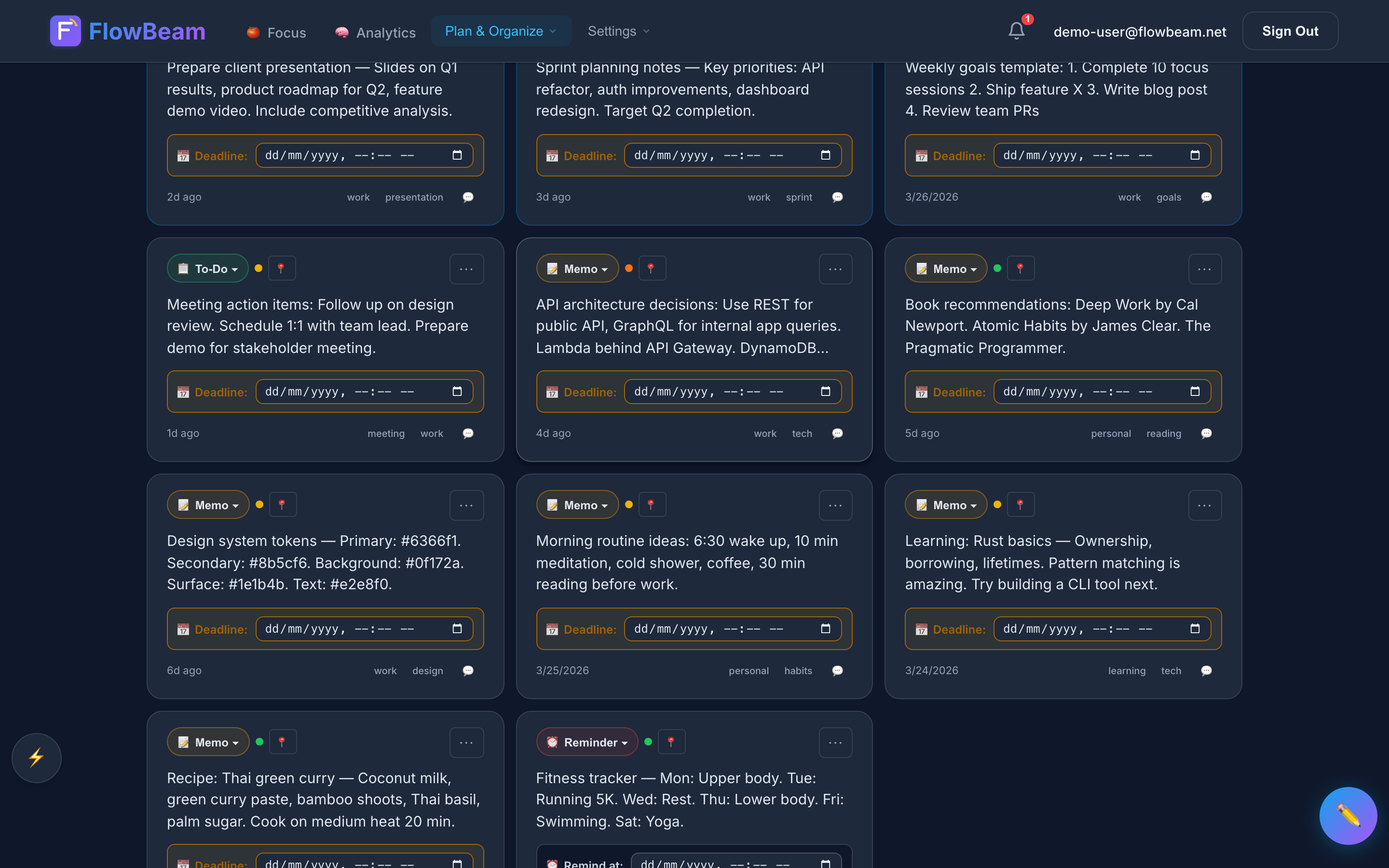
Categories and tags keep your notes organised as they grow
Pro tip: Use consistent tag naming like "project-name" or "meeting-notes" to create virtual collections. Tags work like folders, but a note can belong to multiple tags.
Pin What Matters Most
Found a note you reference daily? Pin it. Pinned notes appear in their own dedicated tab and are always easy to find. Use pins for your current project brief, weekly goals, or any note that needs to stay front and centre while you work.
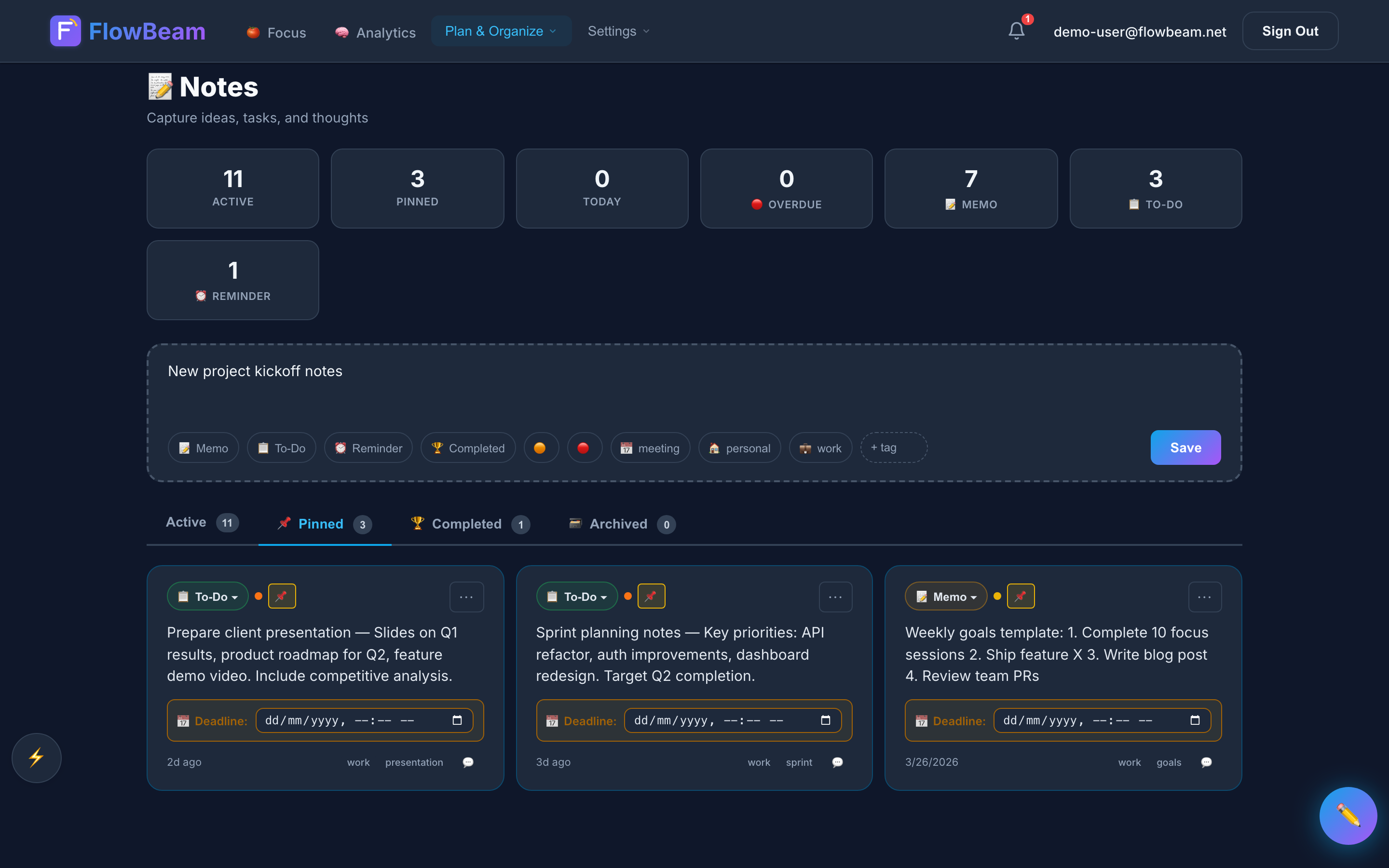
Pinned notes stay front and centre — no more searching
Unlimited notes for unlimited ideas
The free plan gives you 50 notes — plenty to get started. But ideas don't stop at 50. Pro users can create as many notes as they need with no cap, no upgrade prompts interrupting their flow, and no worrying about which notes to delete to make room for new ones.
Search Across Everything
With dozens (or hundreds) of notes, search becomes your best friend. FlowBeam's search looks across titles, content, tags, and categories. Results appear instantly as you type, so you can find that meeting note from three weeks ago in seconds.
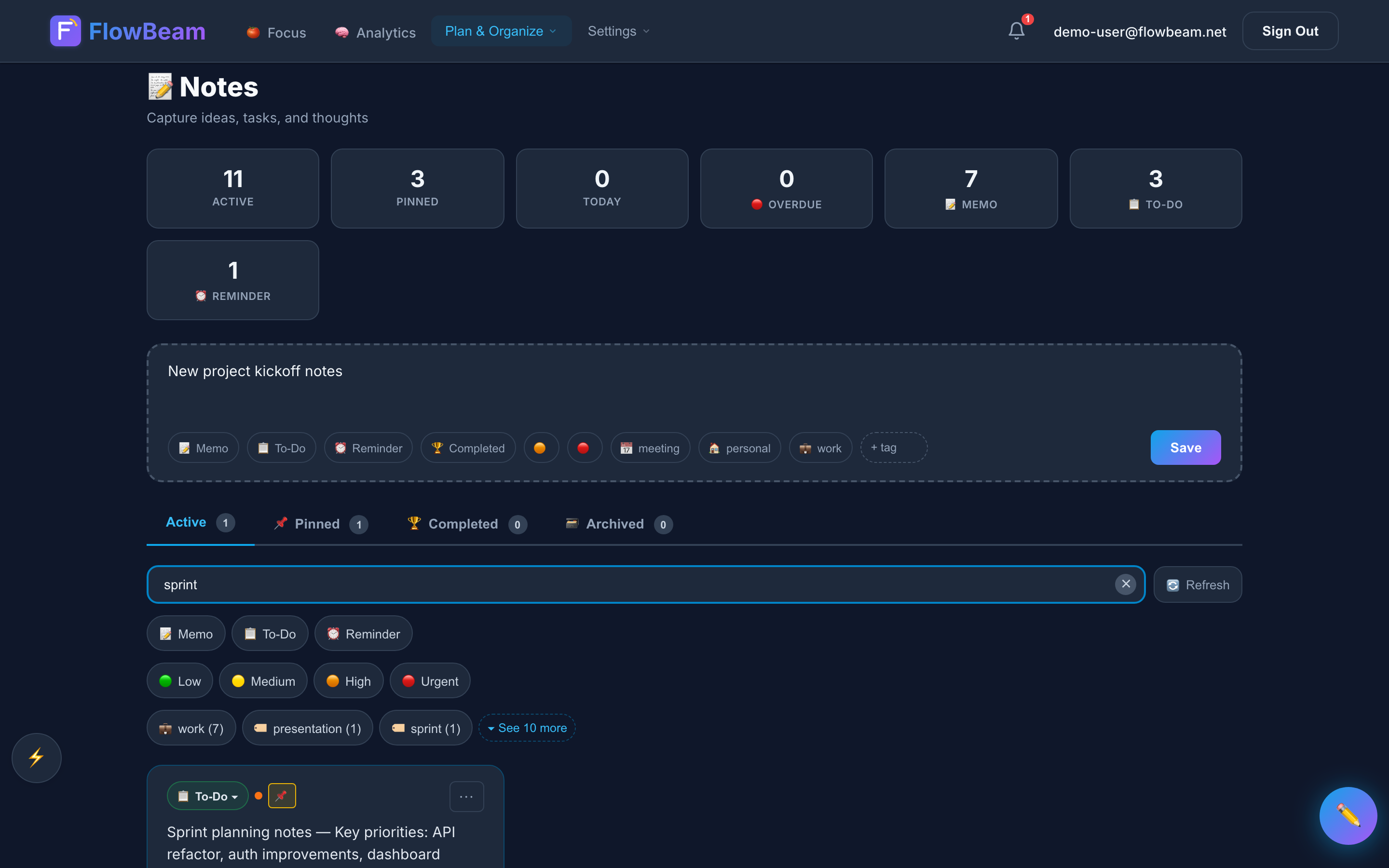
Instant search across all your notes — find anything in seconds
Quick Capture. See the floating button in the bottom-right corner? That's Quick Capture — press it from any page in FlowBeam to jot down a note without leaving your current context.
Connect Notes to Focus Sessions
Notes are most powerful when connected to your work. FlowBeam links notes to your daily plan — if you have a focus task called "Prepare client presentation," any note with that title or tag shows up as a related note in your plan. This creates a natural bridge between capturing ideas and executing on them.
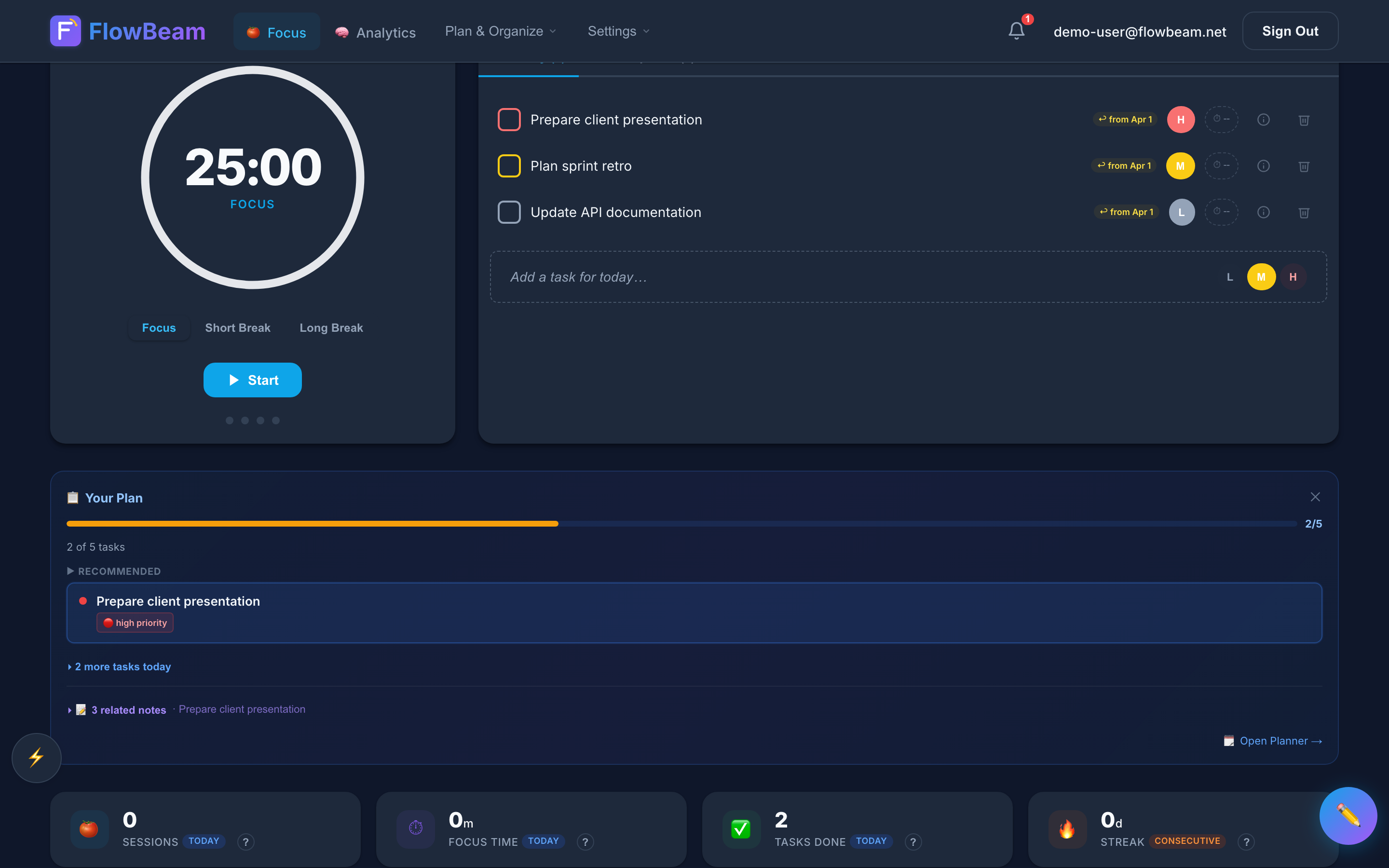
Notes and tasks work together — ideas connect to action
Your Note-Taking Workflow
Smart Notes is designed for speed and simplicity. The workflow is:
As you capture more thoughts, your notes become a personal knowledge base. Combined with focus sessions and daily planning, they form the backbone of a productive workflow.
Start capturing your ideas
Sign up for free and create your first note in seconds. No credit card needed.
Sign Up Free →